

UI 模式
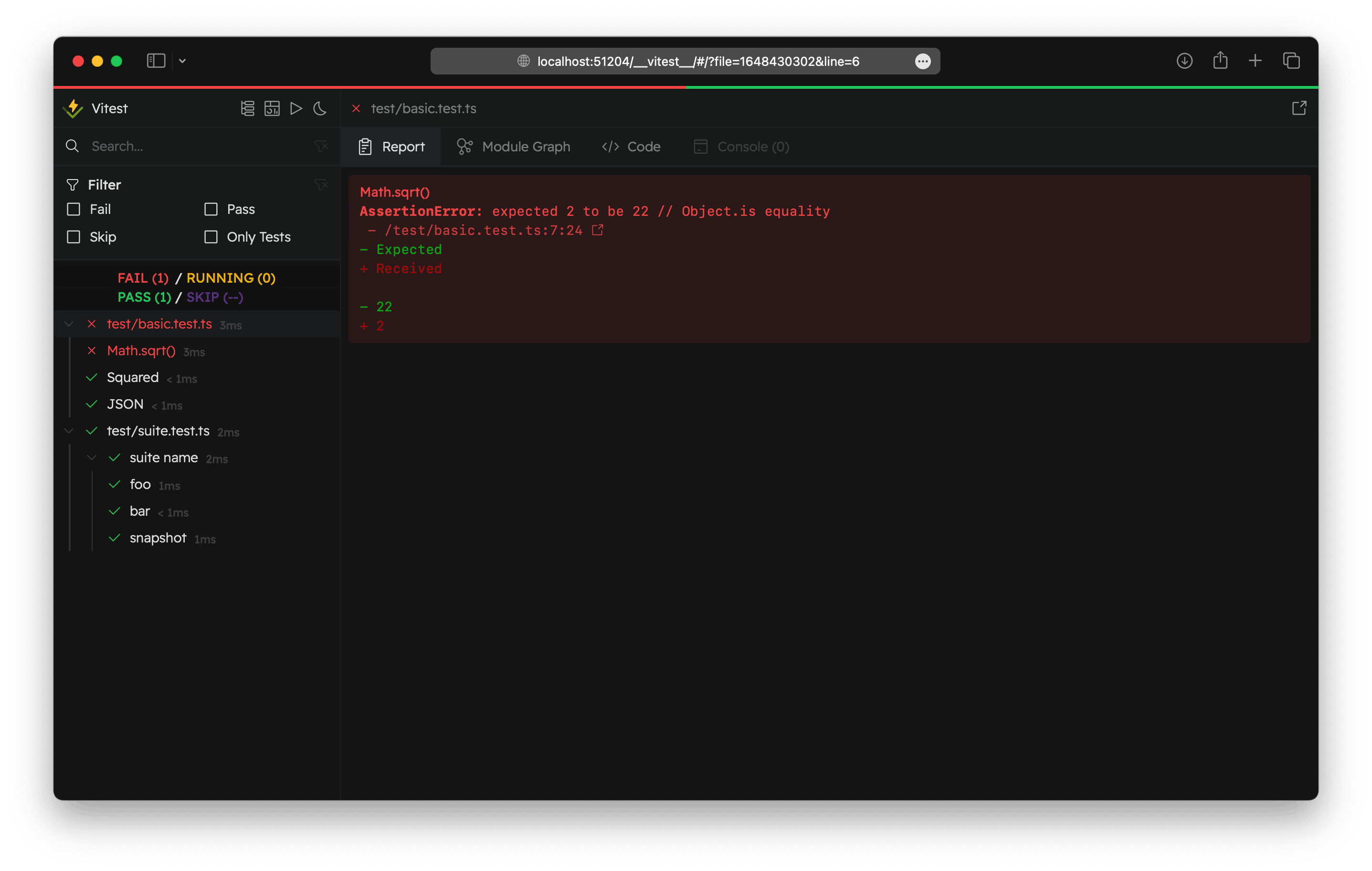
Vitest 由 Vite 提供能力,在运行测试时有一个开发服务器。这允许 Vitest 提供一个漂亮的 UI 界面来查看并与测试交互。
Vitest 的 UI 界面是可选的,你可以通过以下安装:
npm i -D @vitest/ui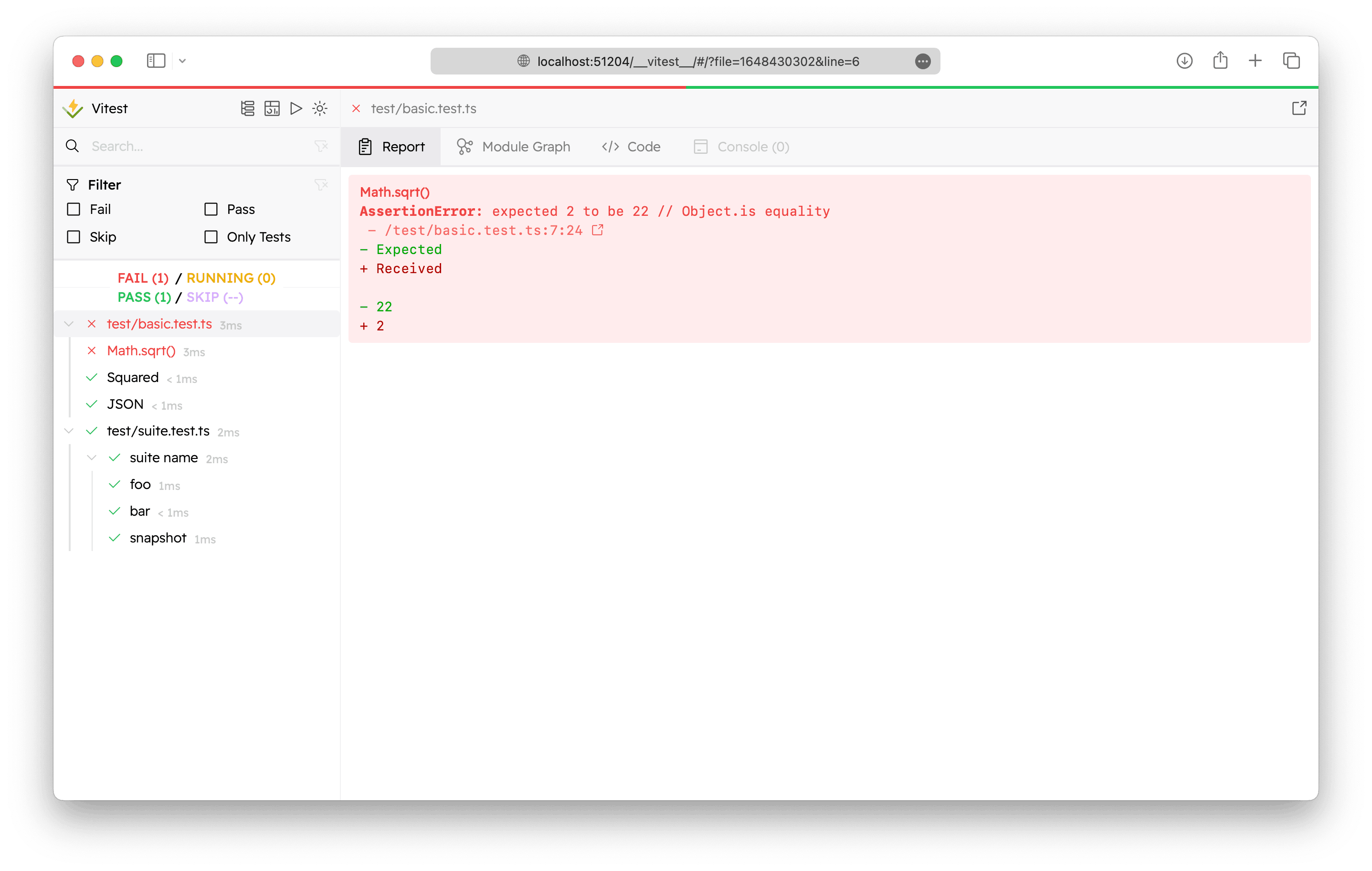
Live UI
The Live UI runs alongside Vitest's development server and requires watch mode, which is enabled by default. It stays connected to the running Vitest process, so results update as tests rerun. You can also rerun selected tests, update failed snapshots, and edit test files directly from the UI.
接下来,你可以通过传入 --ui 参数来启动测试的 UI 界面:
vitest --ui最后,你可以访问 Vitest UI 界面,通过 http://localhost:51204/__vitest__/
提示
Vitest UI access is protected. If the direct URL shows an error, open the URL with a token printed by Vitest in the terminal, for example http://localhost:51204/__vitest__/?token=....
HTML Reporter
The HTML reporter writes test results to a static version of Vitest UI. The result views remain navigable, but the report is read-only and cannot rerun tests, update snapshots, or edit test files. It is useful for run mode, CI, and automated workflows where results are reviewed later.
Use the html reporter from the command line or in your Vitest configuration:
import { defineConfig } from 'vitest/config'

export default defineConfig({
  test: {
    reporters: ['html'],
  },
})vitest run --reporter=htmlKeep terminal output
Configuring the HTML reporter replaces the default terminal reporter. To keep terminal output, include Vitest's default reporters.
import { configDefaults, defineConfig } from 'vitest/config'

export default defineConfig({
  test: {
    reporters: ['html', ...configDefaults.reporters],
  },
})
Preview Locally
By default, the report entry is written to .vitest/index.html. You can configure the artifact directory with the HTML reporter's outputDir option.
To preview the default output, use the vite preview command:
npx vite preview --outDir .vitestOpen the URL printed by Vite in your browser. Alternatively, VS Code's Integrated Browser can open .vitest/index.html directly without a preview server.
Share as a Single File
Set singleFile to generate a self-contained HTML report:
export default defineConfig({
  test: {
    reporters: [
      ['html', { singleFile: true }],
    ],
  },
})
When singleFile is enabled, Vitest inlines the UI assets, metadata, and test attachments into a single self-contained index.html. This makes the report easy to share, upload, or download as one artifact instead of preserving the whole output directory.
Because everything is inlined, you can open <outputDir>/index.html directly in a browser with a file:// URL. No preview server is required.
注意
singleFile has two caveats:
- The file can grow very large because everything is embedded inline. It can be slow to open, memory-hungry, or exceed the size limits of artifact viewers and static hosts.
- Coverage HTML reports are not inlined yet and remain as separate files.
Prefer the default multi-file report when the suite has many or large attachments, or when you need coverage included in the bundle.
View Reports from CI
To view the HTML report from CI, for example in GitHub Actions, upload the output directory as an artifact:
- uses: actions/upload-artifact@v7
  id: upload-report
  with:
    name: vitest-report
    path: .vitest/

- name: Link HTML report
  run: echo "::notice title=Vitest HTML report::$REPORT_URL"
  env:
    REPORT_URL: https://viewer.vitest.dev/?url=${{ steps.upload-report.outputs.artifact-url }}
This adds the report link as a notice annotation on the workflow run. Click it to open the report in Vitest Viewer directly in the browser. You can also download the artifact manually and extract it, then run vite preview locally as above.
When you use singleFile: true, you can upload the report as a single file and view it directly from GitHub artifacts with the archive: false option:
- uses: actions/upload-artifact@v7
  id: upload-report
  with:
    path: .vitest/index.html
    archive: false

- name: Link HTML report
  run: echo "::notice title=Vitest HTML report::$REPORT_URL"
  env:
    REPORT_URL: ${{ steps.upload-report.outputs.artifact-url }}
Coverage
Vitest UI displays coverage results in both the Live UI and HTML reports. See Vitest UI Coverage for setup and usage.
Trace View
Vitest UI replays recorded browser interactions when browser.traceView is enabled. The Live UI streams trace entries as tests run, while HTML reports preserve recorded traces for later review.
模块图
模块图选项卡显示所选测试文件的模块图。
说明
所有示例图片均使用 Zammad 代码库作为演示。
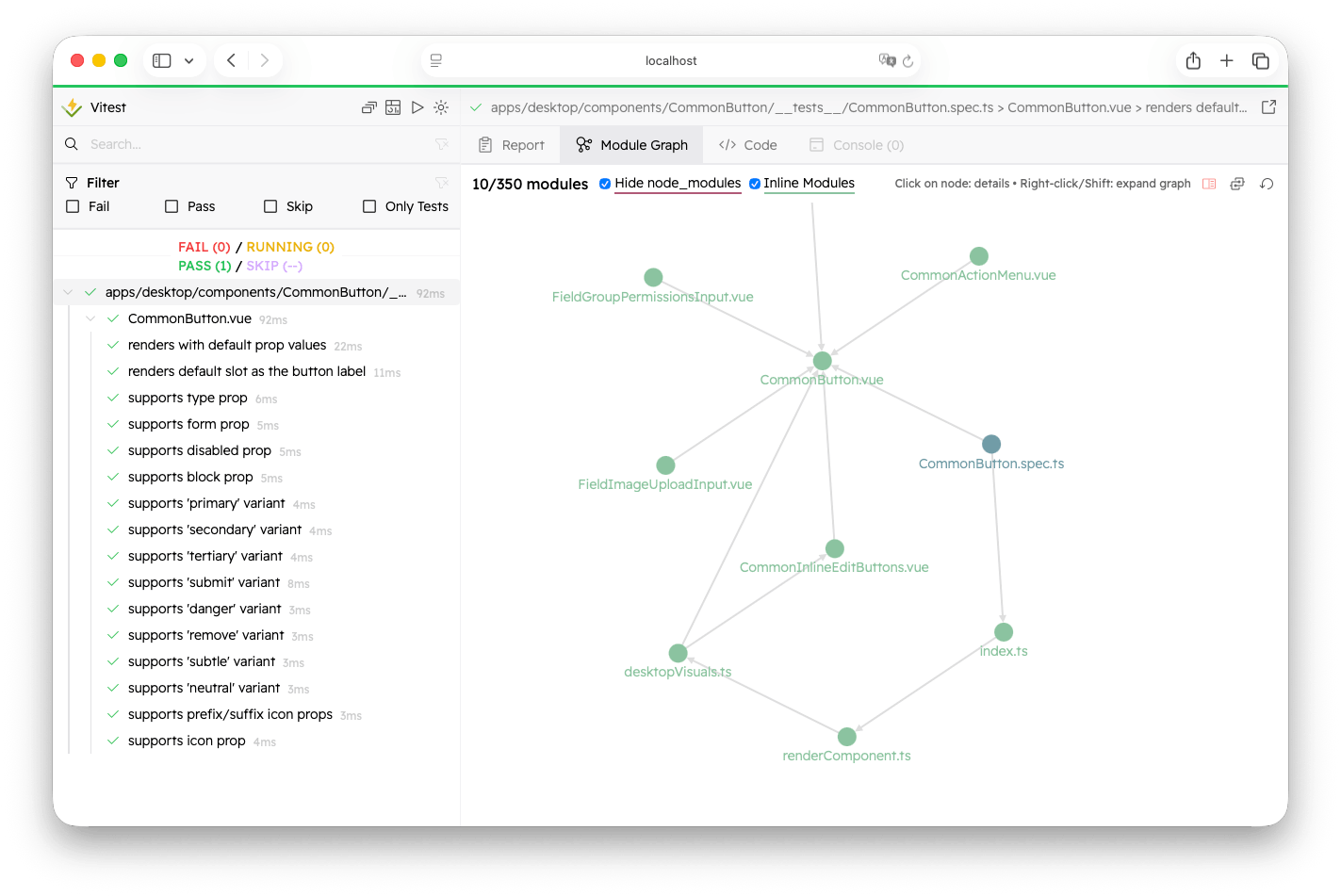
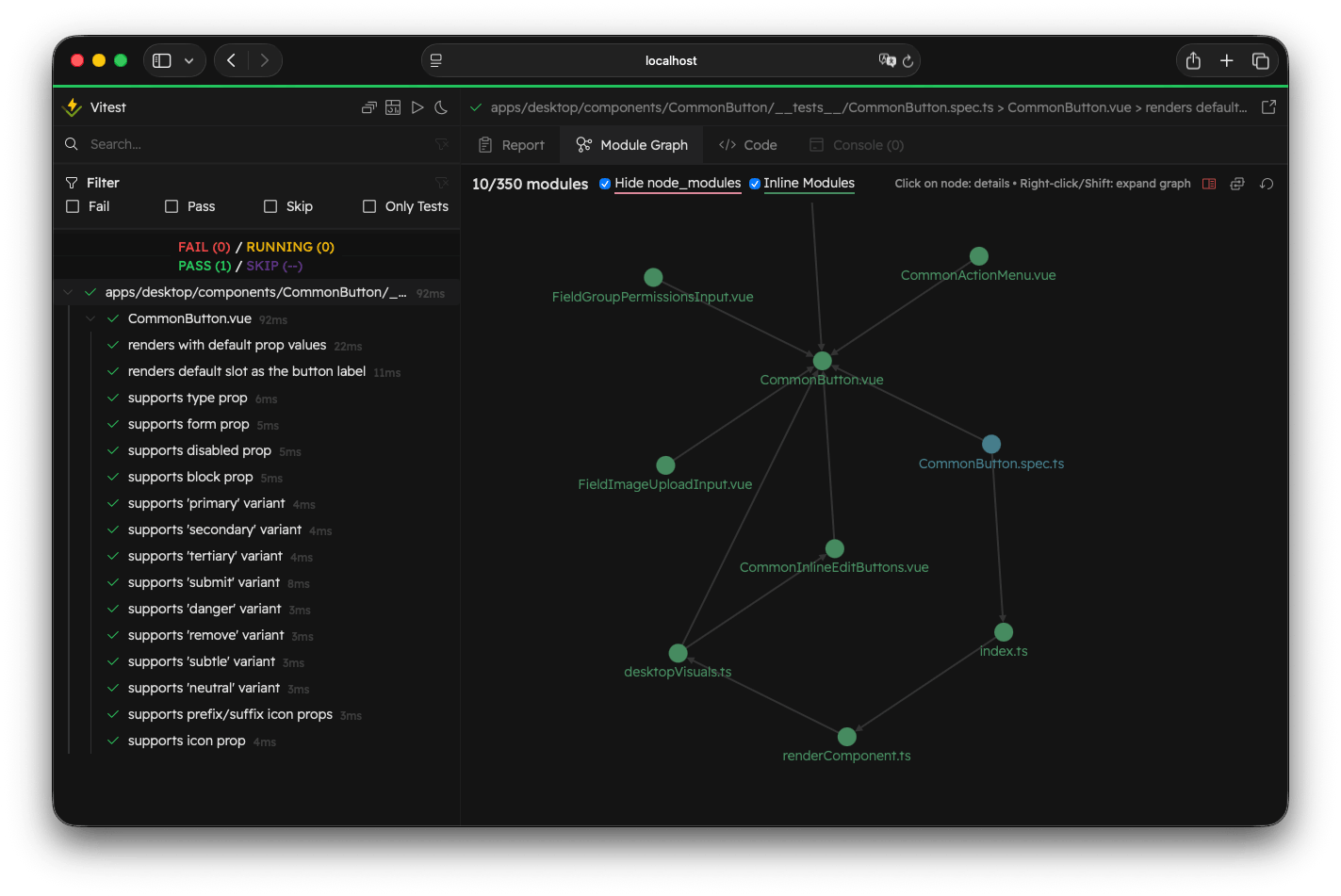
如果模块数量超过 50 个时,模块图默认仅显示前两层结构以减少视觉干扰。你可以随时点击 "Show Full Graph" 图标来查看完整图表。
注意
注意:如果你的模块规模过大,节点位置可能需要一些时间才能稳定下来。
你可以随时点击 "Reset" 来恢复入口模块图。右键点击或按住 Shift 键,可展开查看与改节点相关的所有模块。
默认情况下,Vitest 会隐藏 node_modules 中的模块。通常,这些模块会被外部化。可以取消勾选 "Hide node_modules" 来显示它们。
模块信息
通过左键点击模块节点,你可以打开模块信息视图。
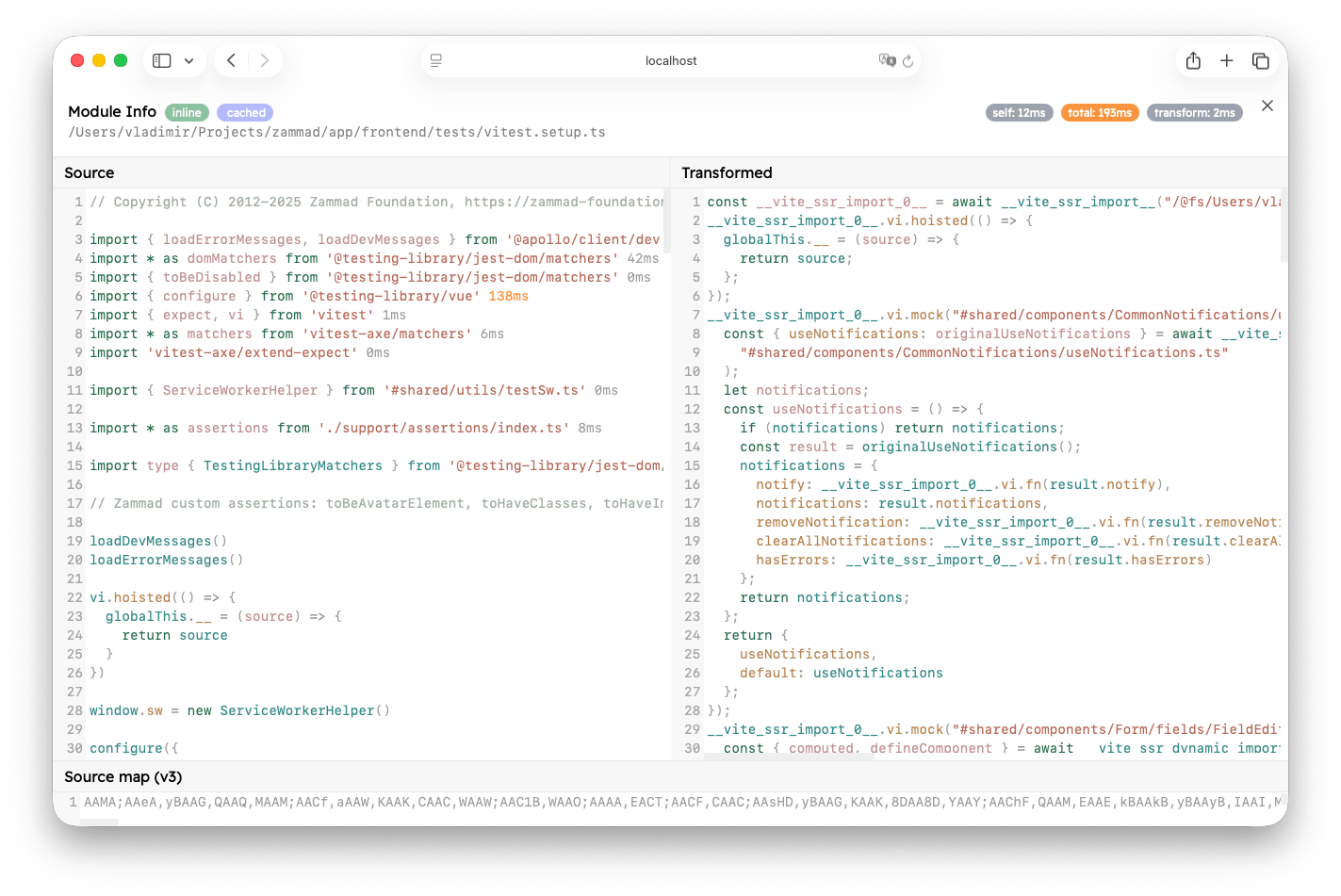
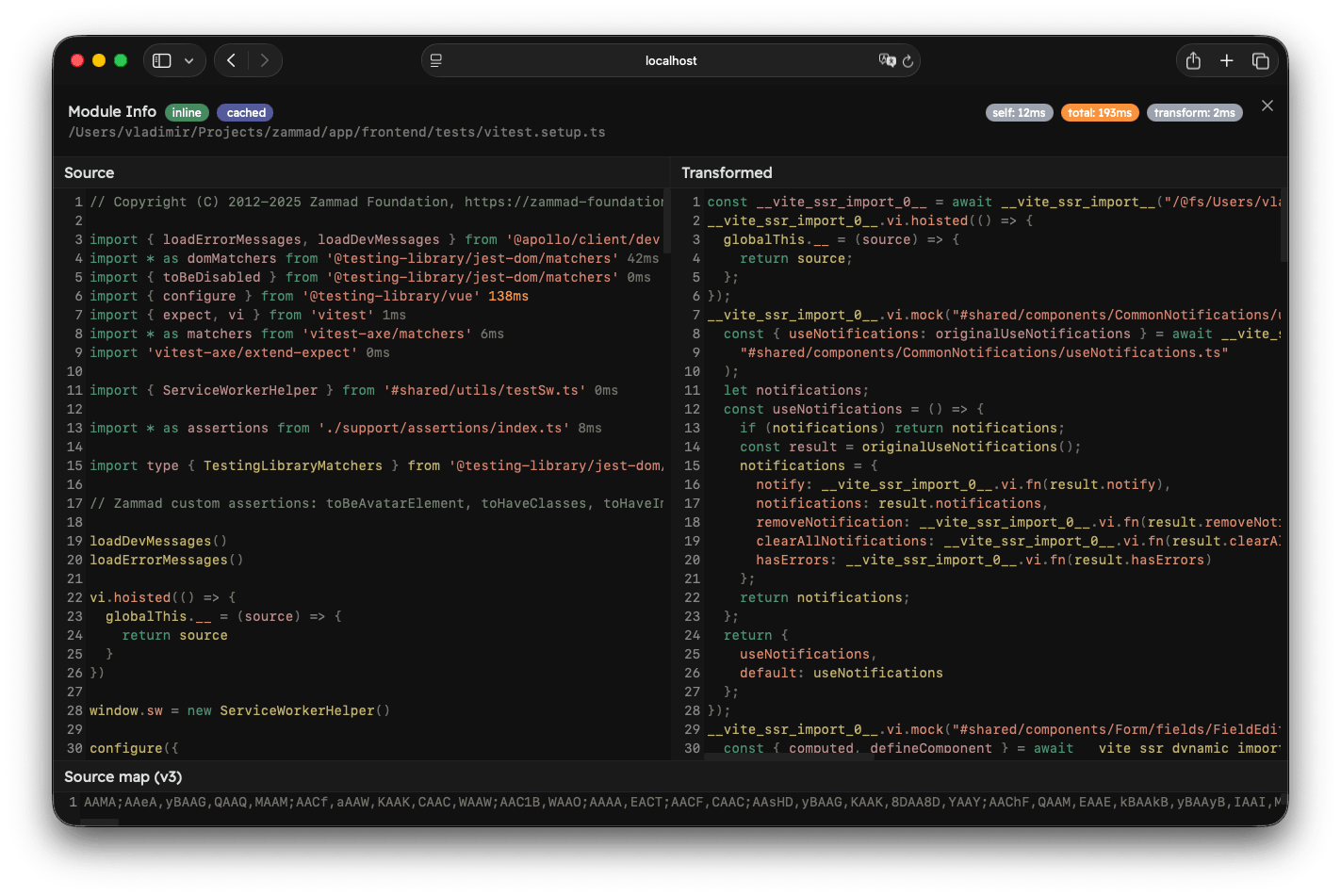
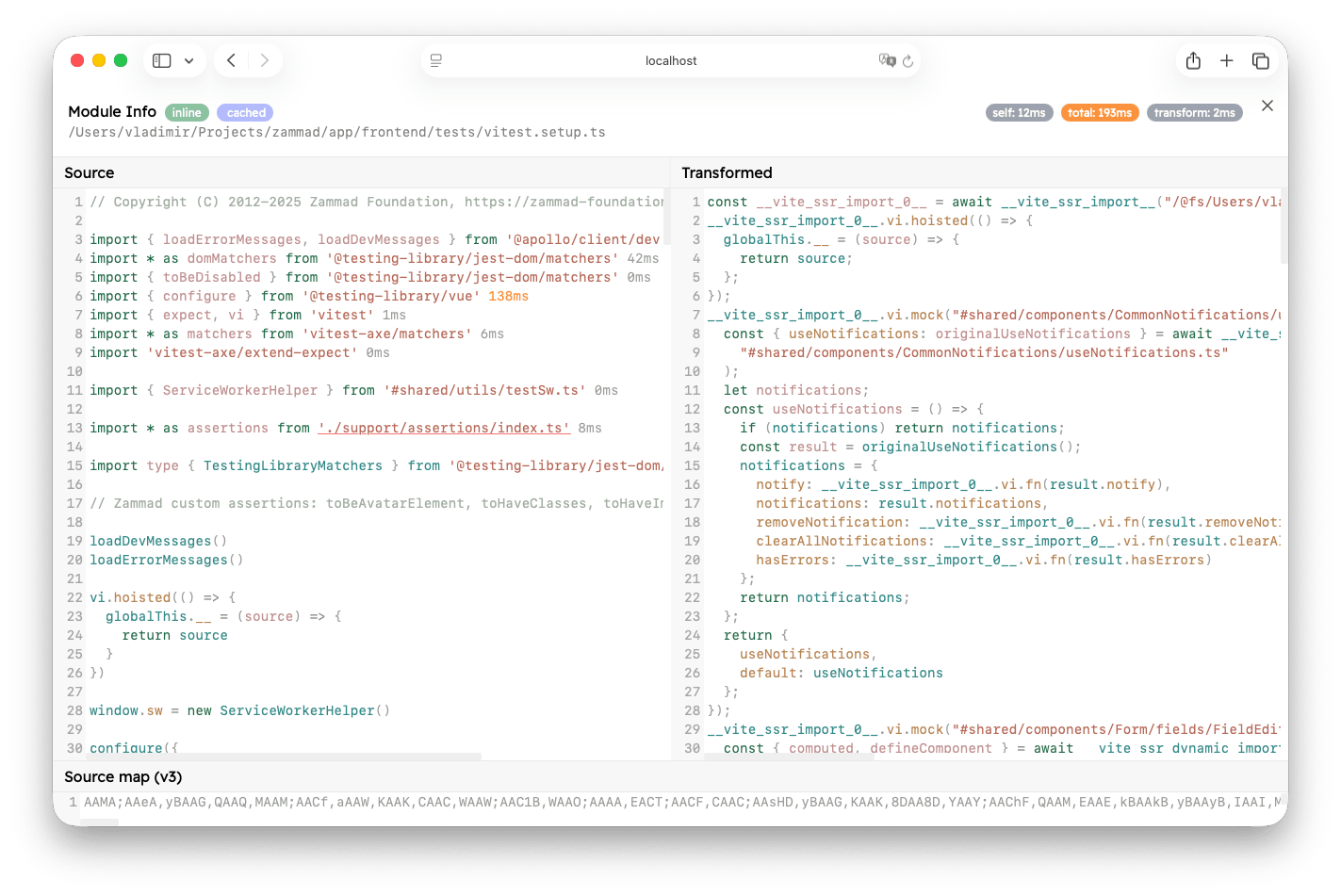
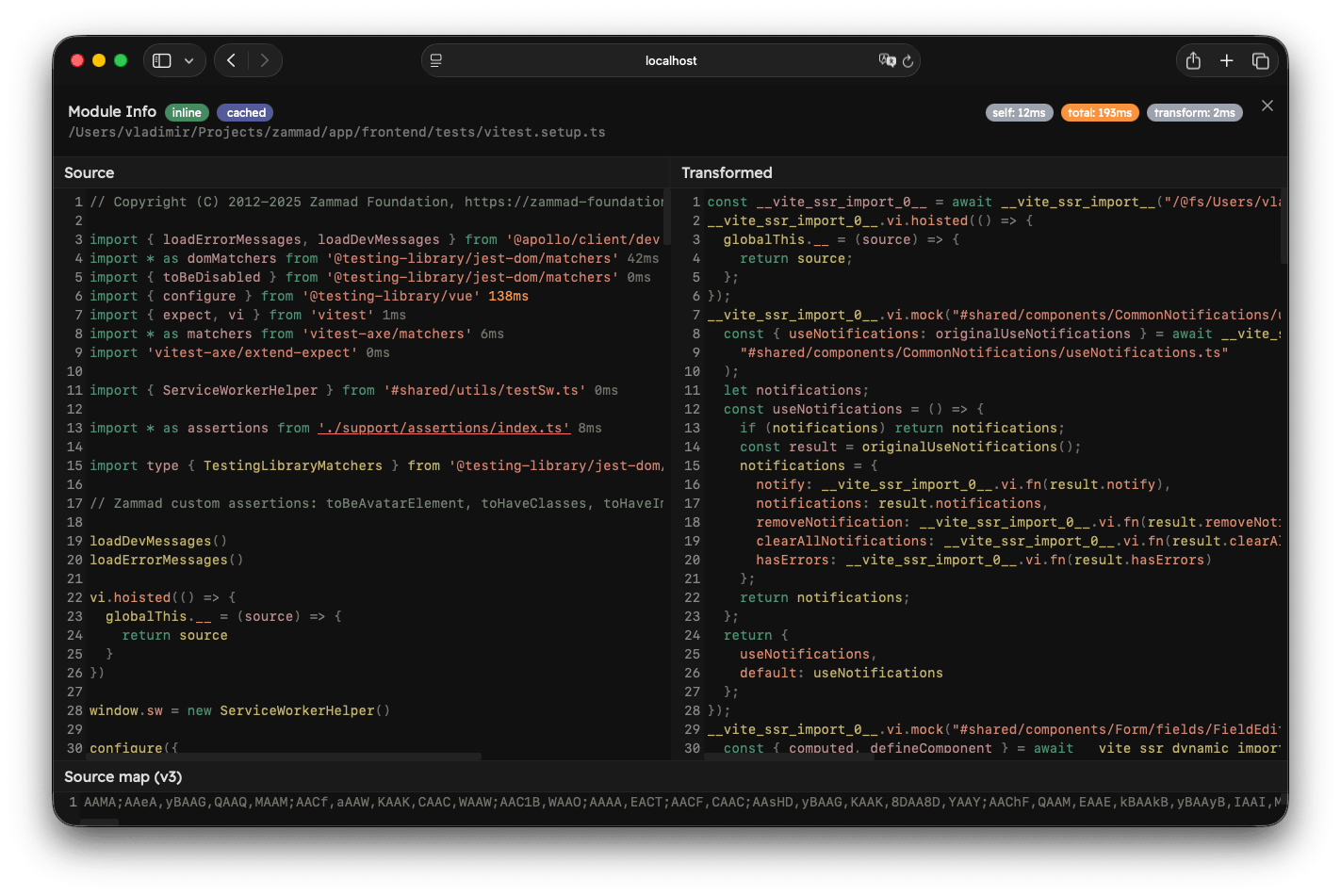
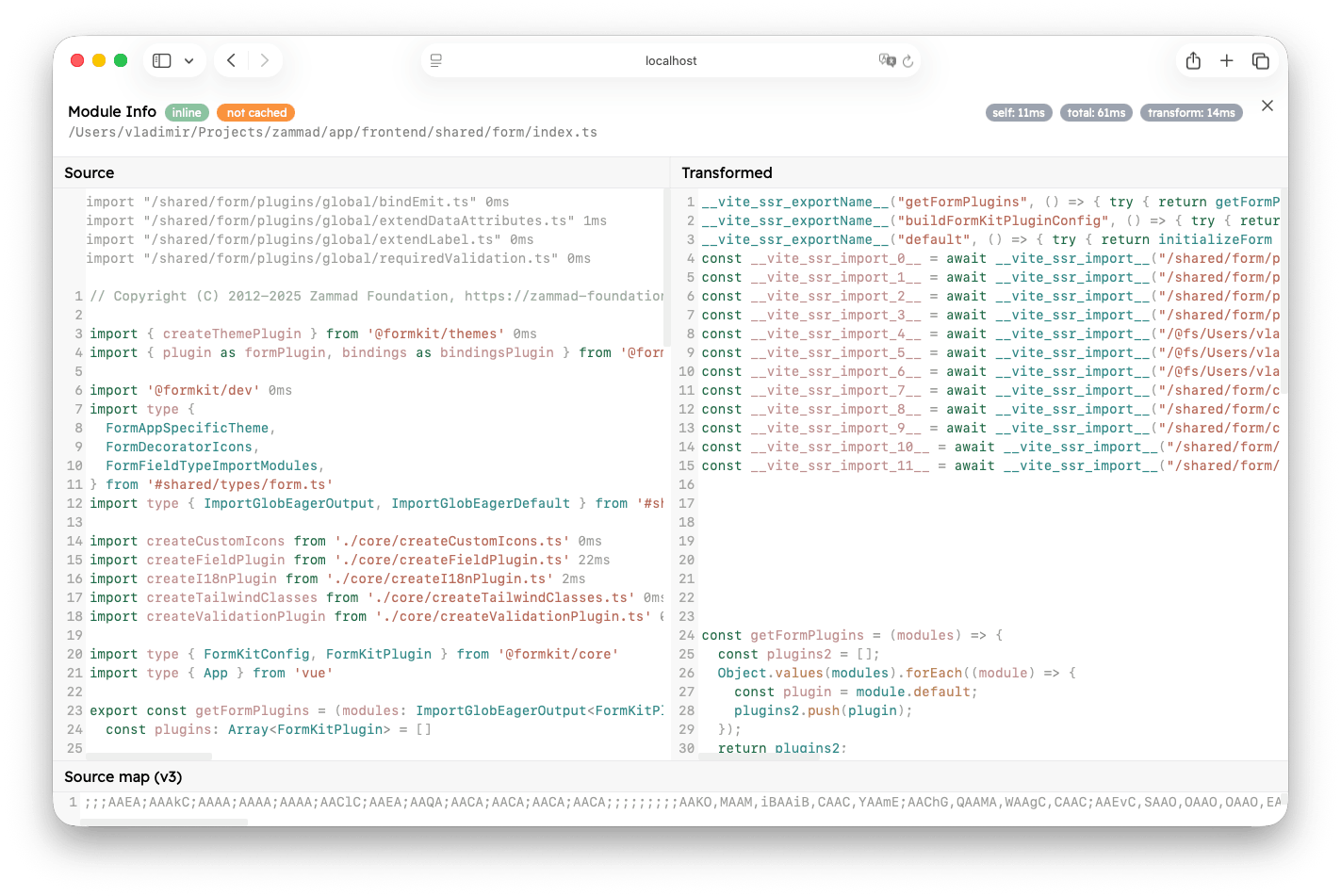
此视图分为上下两部分。顶部显示完整的模块 ID 和一些关于模块的诊断信息。如果启用了 fsModuleCache,将会显示 "cached" 或 "not cached" 的徽章。在右侧你可以看到时间诊断信息:
- 自身时间:导入模块所花费的时间,不包括静态导入。
- 总耗时:导入模块所花费的时间,包括静态导入。请注意,这不包括当前模块的
transform时间。 - 转换:转换模块所花费的时间。
若你是通过点击导入项打开此视图,你还会在顶部看到一个 "Back" 按钮,点击可返回上一个模块。
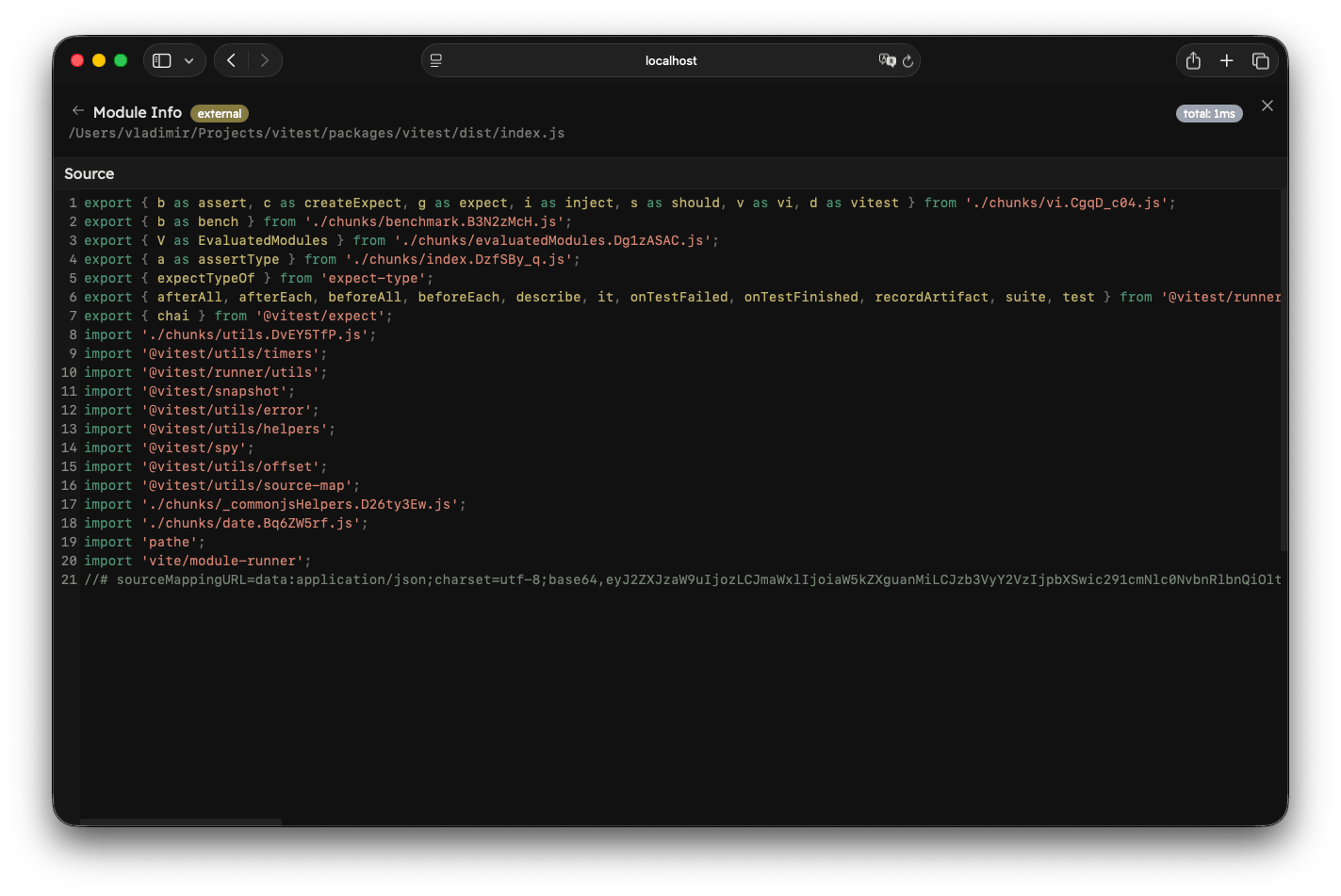
底部显示内容取决于模块类型。对于外部模块,你仅能看到该文件的源代码。此时无法继续遍历模块依赖图,也无法查看静态导入的耗时情况。
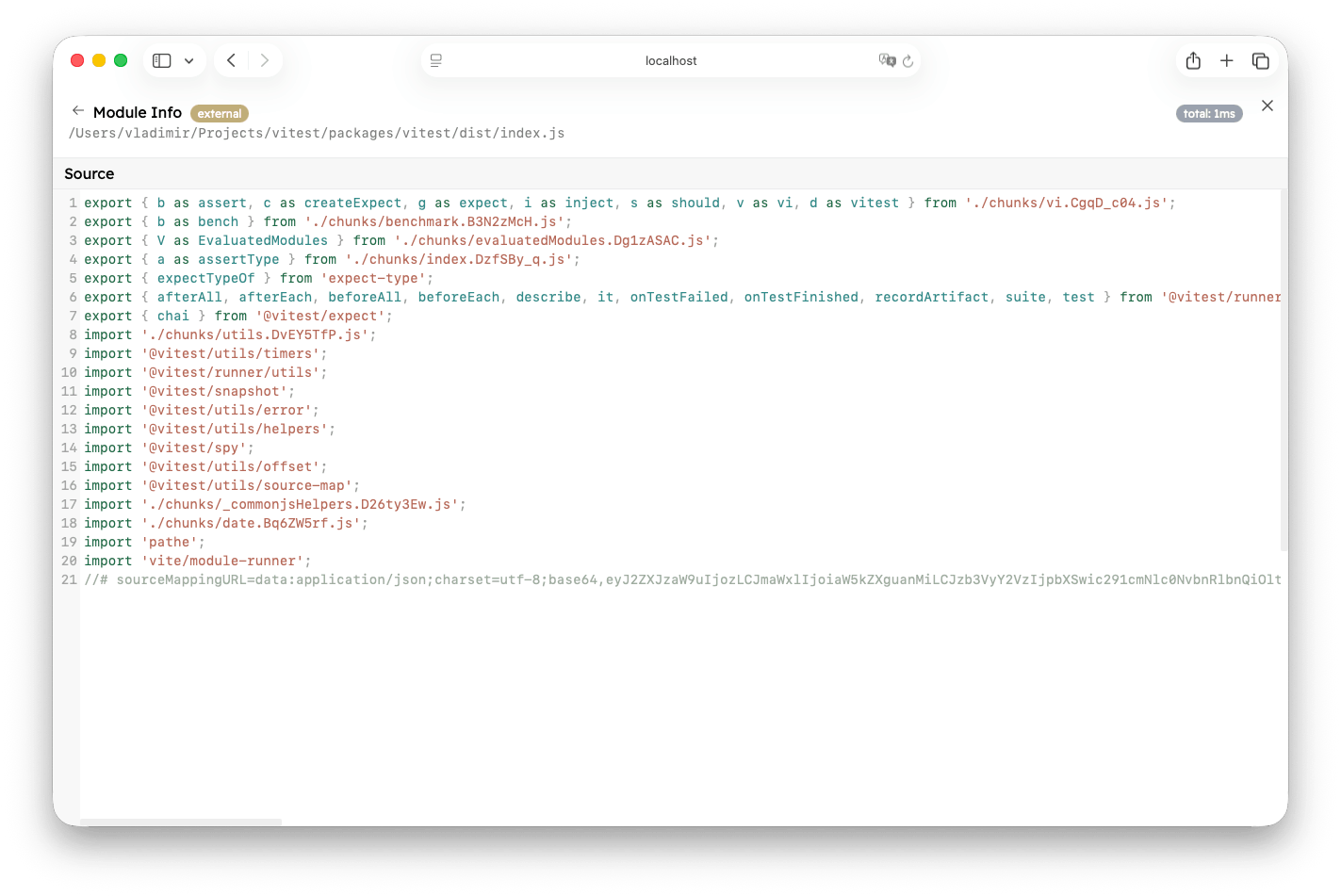
如果模块是内联的,你将看到另外三个窗口:
- 源代码:模块未更改的源代码
- 转换后:Vitest 使用 Vite 的 ModuleRunner 执行的转换后代码
- Source Map (v3):源码映射关系
"Source" 窗口中的所有静态导入显示当前模块评估它们的总耗时。如果导入已在模块图中被评估过,它将显示 0ms,因为此时已被缓存。
如果某个模块的加载时间超过 danger 阈值(默认:500ms),耗时将以红色显示。如果超过 warn 阈值(默认:100ms),耗时将以橙色显示。
你可以点击导入源代码跳转到该模块并进一步遍历图表(注意下面的 ./support/assertions/index.ts)。
注意
请注意,仅类型导入在运行时不执行,不显示总耗时。它们也无法打开。
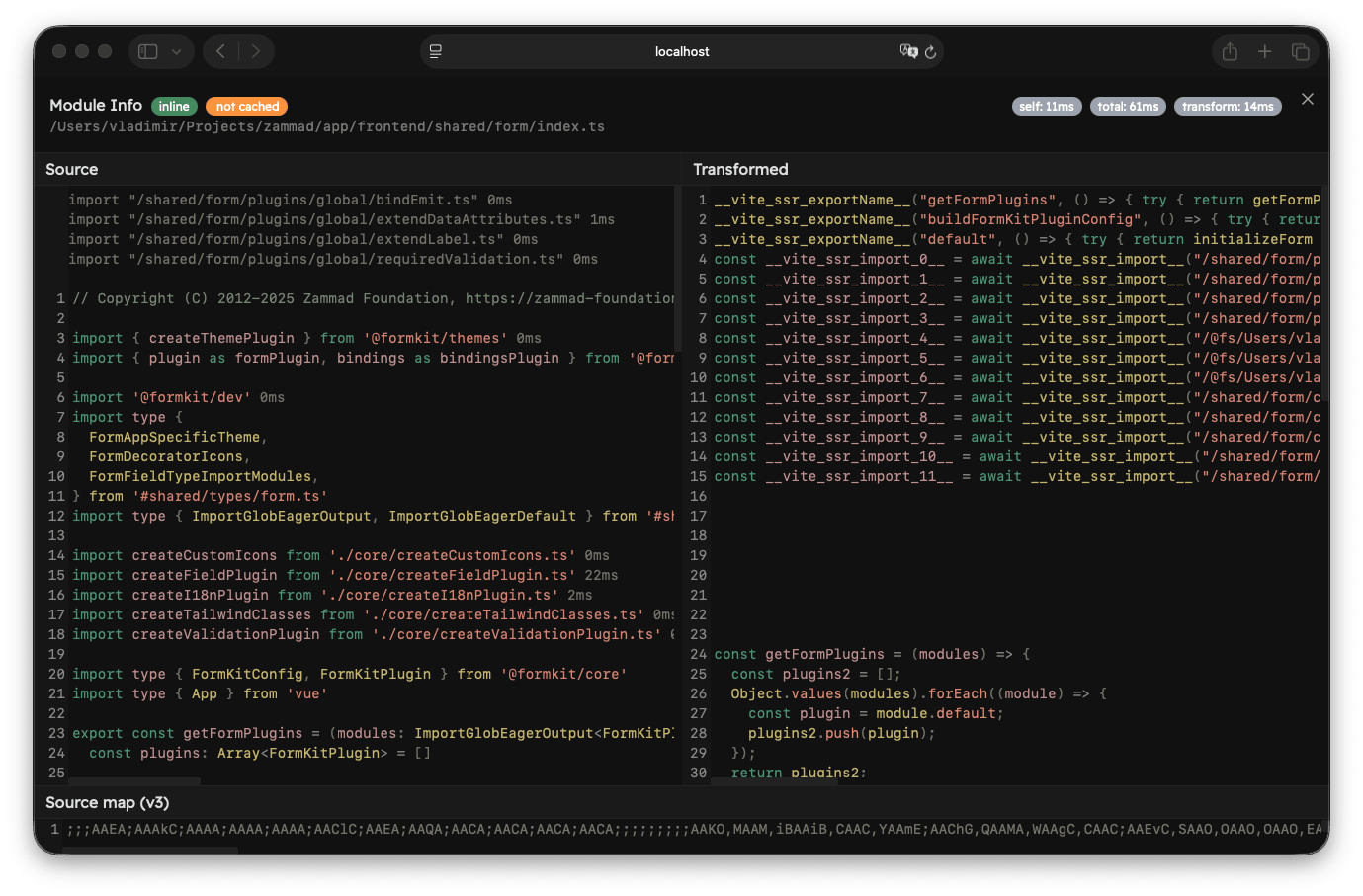
如果另一个插件在转换期间注入模块导入,这些导入将在模块开始处以灰色显示(例如,通过 import.meta.glob 注入的模块)。它们也显示总耗时并且可以进一步遍历。
提示
如果你正在基于 Vitest 开发自定义集成,可以使用 vitest.experimental_getSourceModuleDiagnostic 来检索此信息。
导入耗时分析
功能反馈
请将关于此功能反馈提交至 GitHub Discussion。
模块依赖图标签还提供了导入耗时分析功能,默认显示加载耗时最长的前 10 个模块列表(按总耗时排序)。
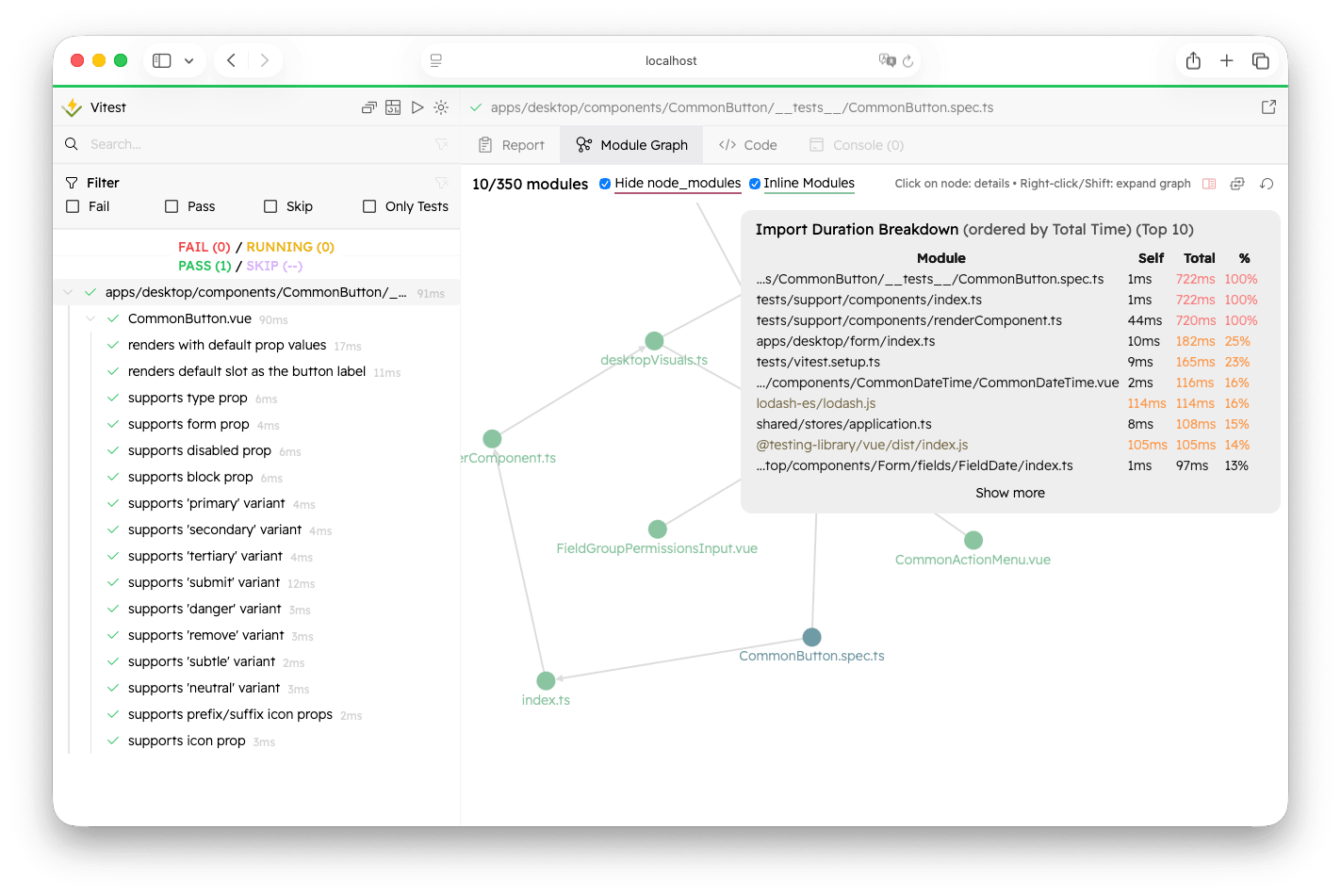
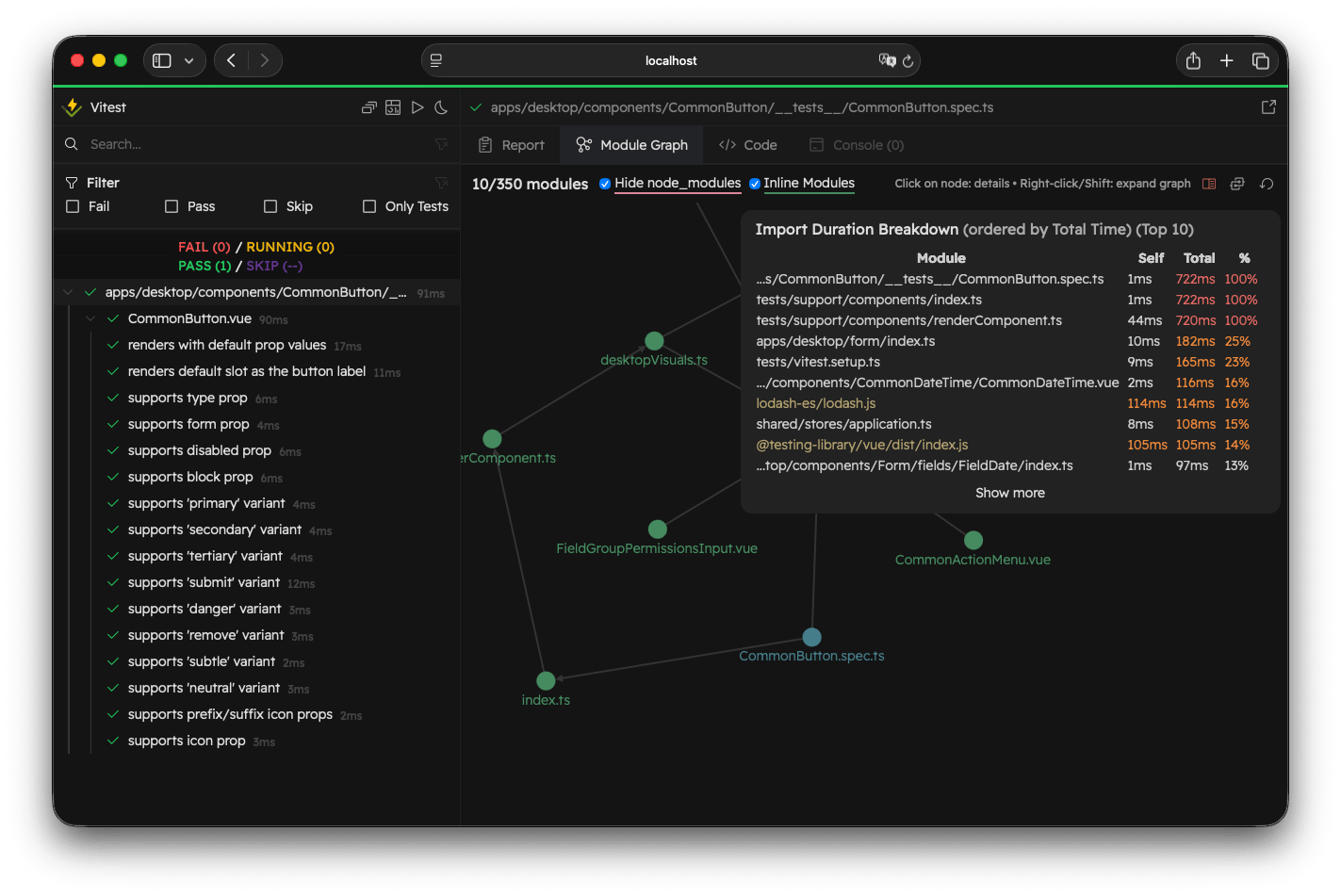
你可以点击模块查看模块信息。如果模块是外部的,它将显示黄色(与模块图中的颜色相同)。
分析列表包含自用耗时、总耗时以及相对于加载整个测试文件所花费时间的百分比。
当存在至少一个文件加载时间超过 danger 阈值(默认值:500 毫秒)时,“显示导入耗时分析” 图标将呈现红色;如果存在至少一个文件加载时间超过 warn阈值(默认值:100 毫秒),则图标显示为橙色。
你可以使用 experimental.importDurations.limit 配置项控制显示的导入项数量上限。